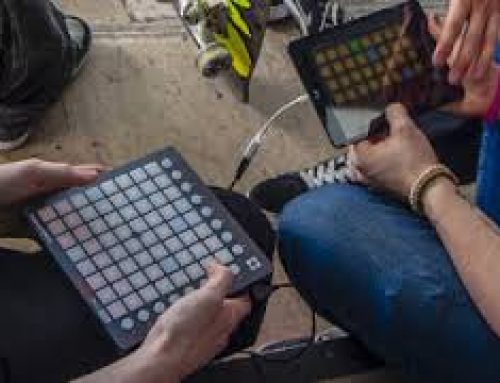
Turning your android smartphone into a midi controller is easy and an awesome way to add more knobs and buttons to your live setup. Also having this as wireless means you can do some cool stuff for dialing your sound and such. This article is going to lay out all the things you will need to install and run this app. These are the instructions on how I did this on my Droid phone and PC laptop.
The FingerPlay App
FingerPlay MIDI is a MIDI controller for Android. Any changes made to the controllers on your phone are transmitted over the WIFI network to a receiving computer using either OSC messages or its own FingerPlay format. The MIDI messages can then be sent to any music software capable of receiving MIDI input.
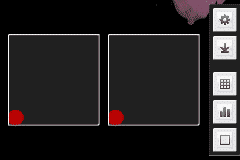
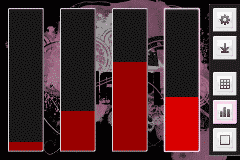
Simplest way to install FingerPLay Midi is to just look it up in the Android Market. It is a free, stable, and awesome app. If you can’t get online or need another way then you can go to the developers website: http://thesundancekid.net/blog/fingerplay-midi/
Install on the Laptop
Installing the program on the computer side is a little strange. First thing to do is make sure you have the newest Java installed. Then you also need to set the Java Path.
The path is now managed by Windows 7 and not the autoexec.bat or autoexec.nt files. To change the system environment variables, follow the below steps.
- From the desktop, right-click My Computer and click Properties.
- In the System Properties window, click on the Advanced tab.
- In the Advanced section, click the Environment Variables button.
- Finally, in the Environment Variables window (as shown below), highlight the Path variable in the Systems Variable section and click the Edit button. Add or modify the path lines with the paths you wish the computer to access. Each different directory is separated with a semicolon as shown below.
C:Program Files;C:Winnt;C:WinntSystem32

After that you install the FingerPlay Server. It is a dos program that will need the java path set. Then it will try and connect to the smartphone.
Connecting the two
This was a very stupid mistake I made, but make sure your “wireless” is on your phone. If not, it won’t work. Then go to settings and input the ip you got from the FingerPlay server. Then it should be sending midi data you can use for Ableton Live.
One problem you might run into is this statement:
listening on 192.168.0.110:4444 java.net.BindException: Address already in use: JVM_Bind
That probably means that some other application is already using the port 4444 (default) . If you start the jar like this:
java -jar FingerPlayServer.jar 32123 then it will use a different port. I just edited the jar file with notepad and gave it a different number.
Then this should get you all set!
I have been using my droid to do wireless effects on my Autoharp so I can just lay music and not have to touch the computer, just my phone on stage. It is a great performance tool. You can also set the faders for eqing so you can eq from the audience perspective.
Here is one video of an artist using this with the guitar to give you an idea of what can be done. Horrible video quality and jazz, but it gets the brain thinking about it.
If you have ideas, or stories on how you have used your smartphone in performance hit up the comments.
{jcomments on}